Using the power of AI, Python, and Blender to move the world forward
By GavinTheGreat19
As the amount of AI technology continues to grow, so too should our uses for it. LLMs are likely to be the greatest piece of technology to come out of this decade, and it's important that we find uses for it beyond giving us the incorrect number of Rs in the word Strawberry.
I have used the 3D Software, Blender, as well as Microsoft's AI; Copilot, to generate a Python script capable of automating the animation process.
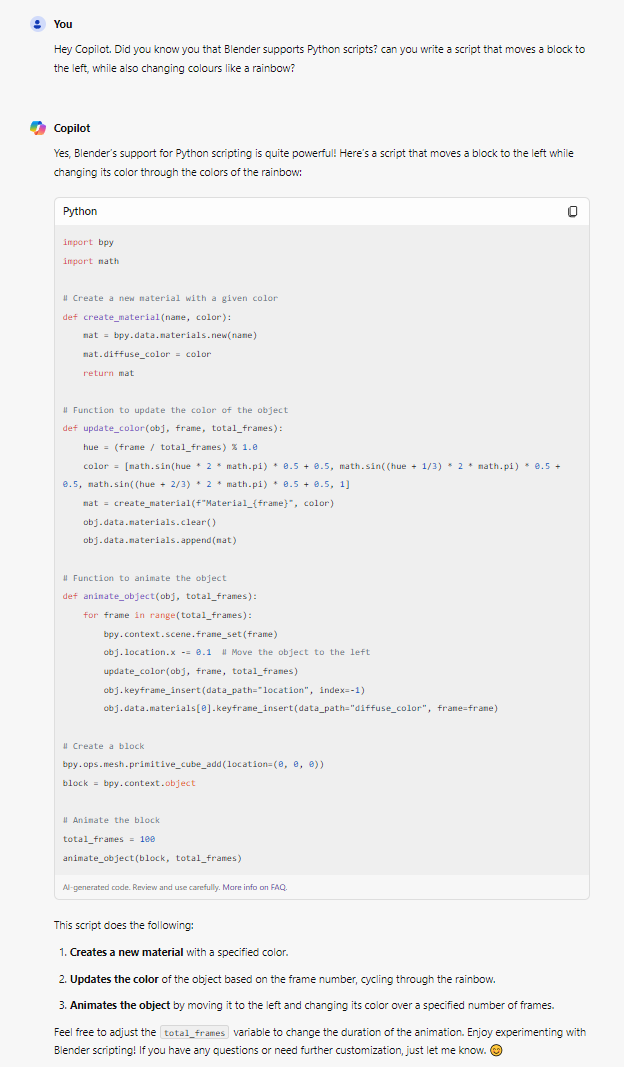
Step one : Generate Code with an LLM of your choosing.
So, as you can see here, I have chatted with the Microsoft Copilot AI, and asked it to generate blender compaitable code for my project. As long as your code request is possible, and simple, any AI Language model should be able to generate something of value.
however, sometimes the code generated will be entirely useless, this is typically because of user error, such as not specifying exactly what you want, but as seen in this image, the code generated didn't function properly, even though I was very specific of what I wanted. But the solution is simple,
all you have to do is ask the LLM again.
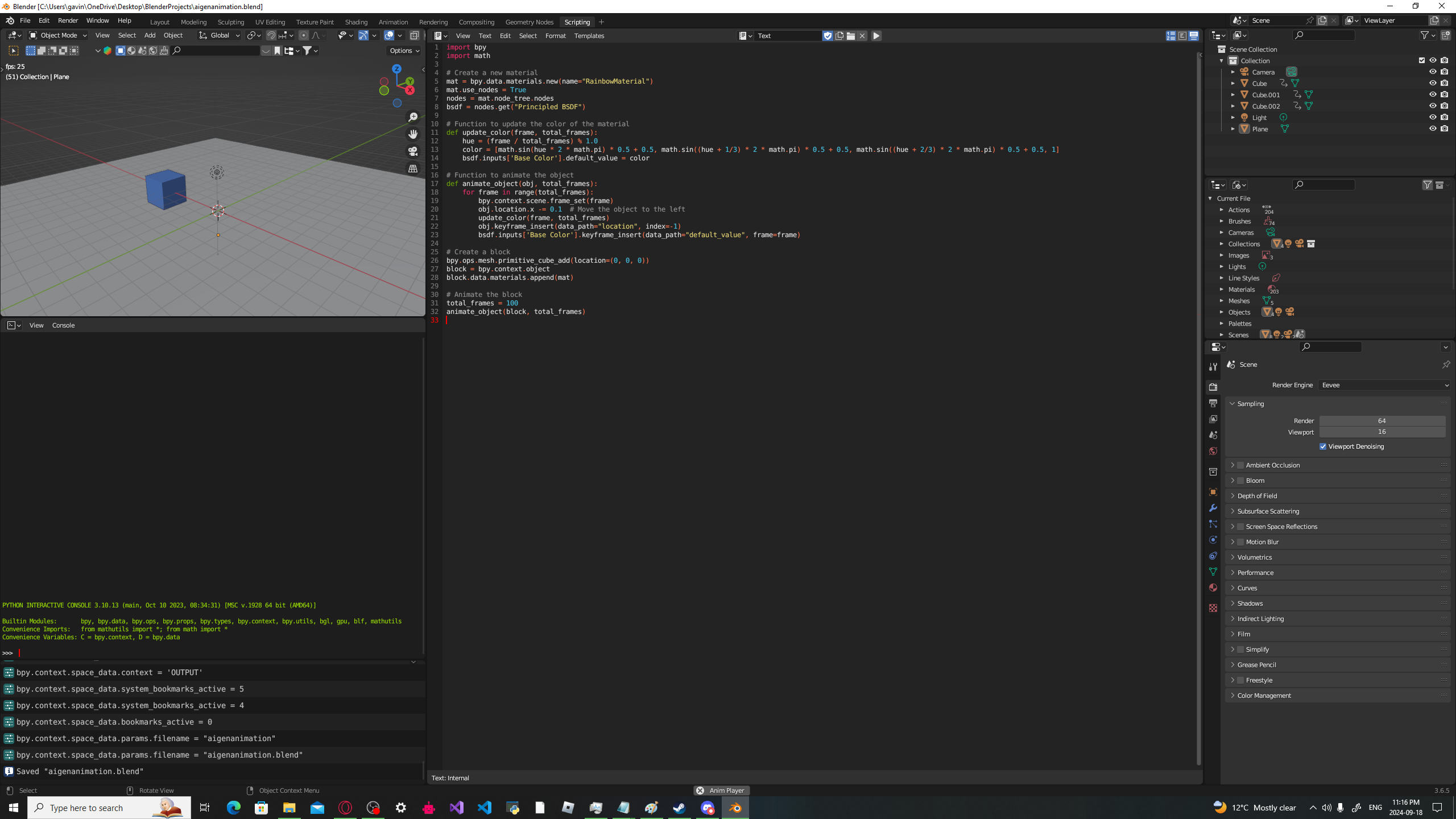
Step two: Put your code into Blender.
The version of blender you are using should not matter too much, as long as it is one that supports the scripting feature. Personally, I was using Blender 3.6.5. Anyways, so you have to look at the top bar of the blender
to see all of the different work stations. When you see the one titled "Scripting" Click on it to open the window. Next, press the new button to make a code file, then paste your code into blender. If all is done correctly, you should have your desired function be created and
appear in the 3D workspace one you click play.
Now when you render the scene, you should have a video, like this:
In this example, I requested Co-Pilot to generate code that would move a box, whilst changing it's colour. I have included a download link below for my blender file, if you wish to see the code and the project.
 Step one : Generate Code with an LLM of your choosing.
  Step two: Put your code into Blender.